Ollee Watch Troubleshooting Guide
This troubleshooting guide is designed to help resolve the most common issues with the Ollee Watch and Ollee Watch App. If the steps below don’t fix your problem, please don’t hesitate to submit a support request and we'll be happy to help you.
Table of Contents
- Installation and Setup
1.1. Display or watch does not power on
1.2. Screen shows partial or missing characters
1.3. Screen shows jumbled / scrambled characters
1.4. No sound
1.5. Spring on the board broke or got damaged
1.6. Light button turns watch off
1.7. Bluetooth Pairing - Failed to Save Settings
1.8. App can't access Bluetooth - Using the Ollee Watch and App
2.1. The number 7, or other characters appear differently
2.2. Watch sync resets the settings
2.3. Buttons don't respond
2.4. Temperature is off, but enabled in the app
2.5. Sound is distorted
2.6. LED colour is not consistent
2.7. Screen turns off, but auto-sleep is off
2.8. Motion sleep doesn't work
2.9. Stopwatch or other faces "time out" after 3 minutes
2.10. Step count out of sync
2.11. Clock drift and offset
2.12. NFC tag won't read or damaged
2.13. Heart Rate error
2.14. Using the app with multiple Ollee Watches
2.15. Health Connect Error
2.16. Account login using website credentials
2.17. Firmware update stuck on boot screen
2.18. Settings get reset when replacing battery
1. Installation and Setup
1.1. Display or watch does not power on
Problem: The Ollee Watch installation instructions were followed, but the screen does not turn on.
Solution: This usually means power is not being delivered to the Ollee Watch circuit board. Try the following:
- Open the watch and ensure the battery spring contact has been properly inserted.
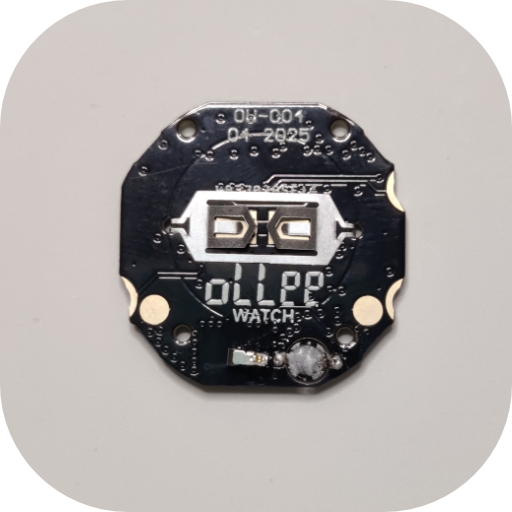
- Make sure the conductive rubber (zebra) strip for the LCD display is inserted, sitting flush, and free of any dust.
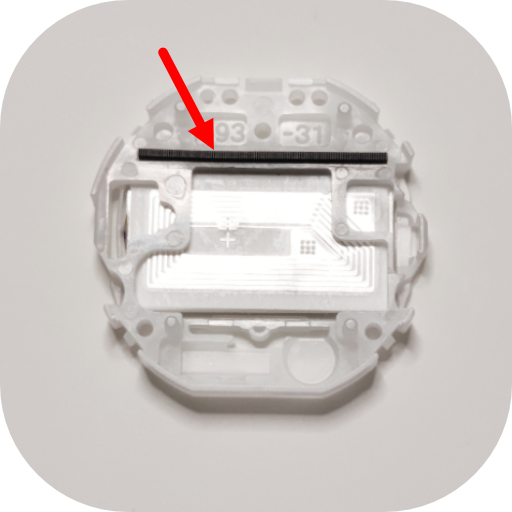
- Re-seat the Ollee Watch board inside the display assembly, place the battery, and assemble the metal bracket. Ensure all four retention clips on the metal bracket are secured.
- Check to see if the screen turns on.
- Replace the CR2016 battery and repeat the steps above.
1.2. Screen shows partial or missing characters
Problem: Installation was successful, but the screen shows partial or missing characters.
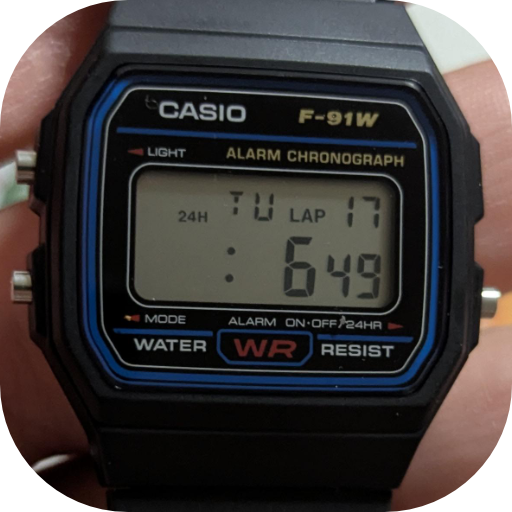
Solution: This usually means that the conductive rubber (zebra) strip for the LCD is not seated correctly or has dust on it. It may also mean the LCD was damaged during installation.
- Take the watch apart and make sure the rubber strip is seated correctly. Wipe the strip lightly with your finger to remove any dust.
- Make sure to properly center the battery in the metal bracket, and that all four clips are securely fastened.
- Reassemble the watch and test again.
- If it still doesn't work, check to see if there may be a crack on the LCD connector. In that case, the LCD will need to be replaced.
1.3. Screen shows jumbled / scrambled characters
Problem: Installation was successful, but the screen shows scrambled or jumbled characters.
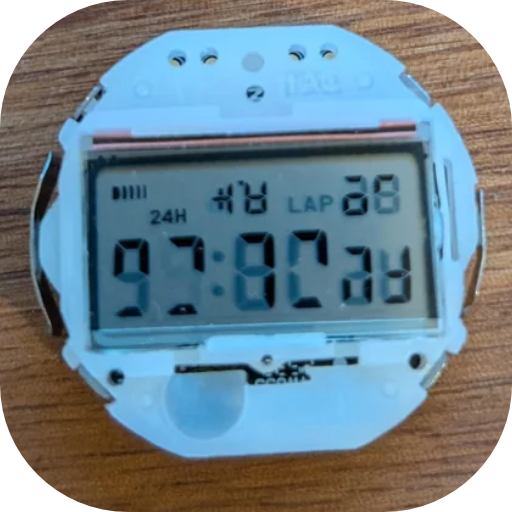
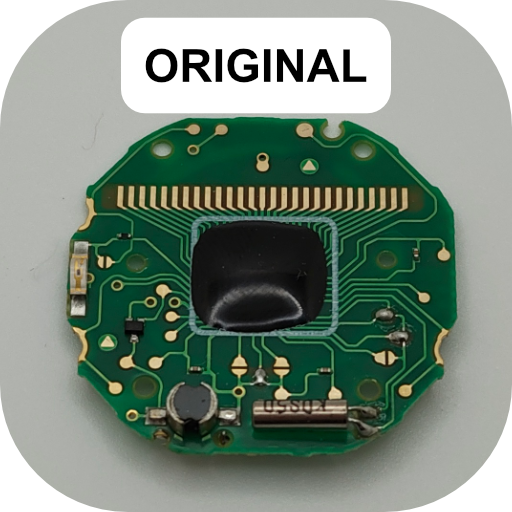
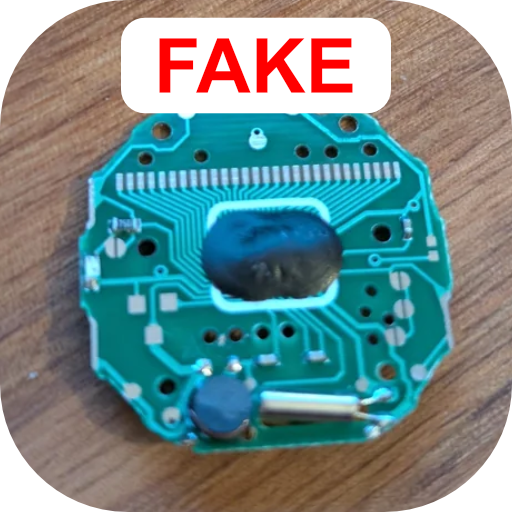
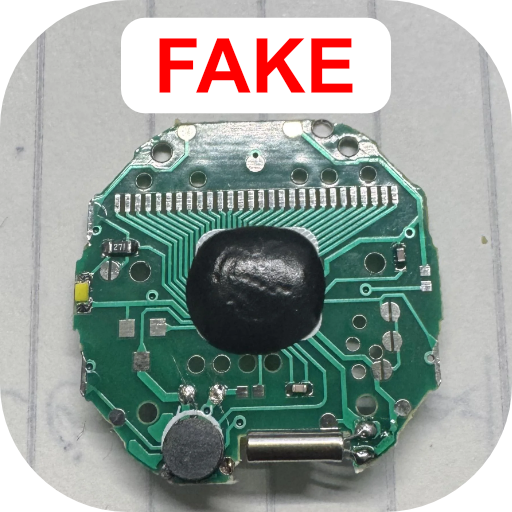
Solution: This usually means that the Ollee Watch was installed in a counterfeit Casio watch. Ollee Watch is only compatible with genuine Casio models.
- Check whether the watch is genuine. There are visible differences on the circuit board that indicate a counterfeit watch. Also, if the conductive rubber (zebra) strip is not grey, for example pink, it is not genuine. You can find more information in this Reddit thread: Ollee Watch sub-reddit
- Install the Ollee Watch circuit board into a genuine Casio watch.
1.4. No sound
Problem: The watch works, but there is no sound.
Solution: This is likely an issue with the installation of the movement into the watch.
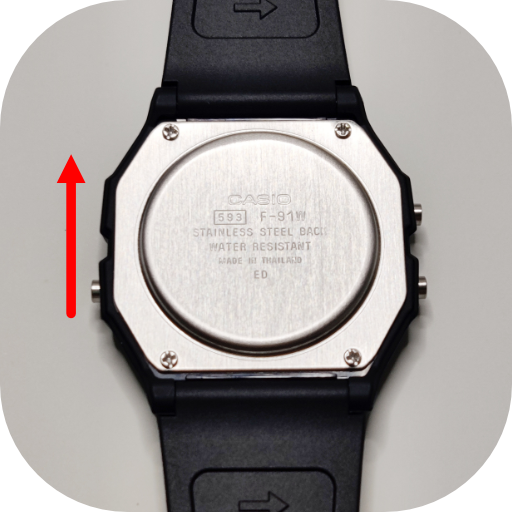
- Check the orientation of the metal bottom cover. The writing should be oriented as shown in the image below. If installed upside down, the sound will not work.
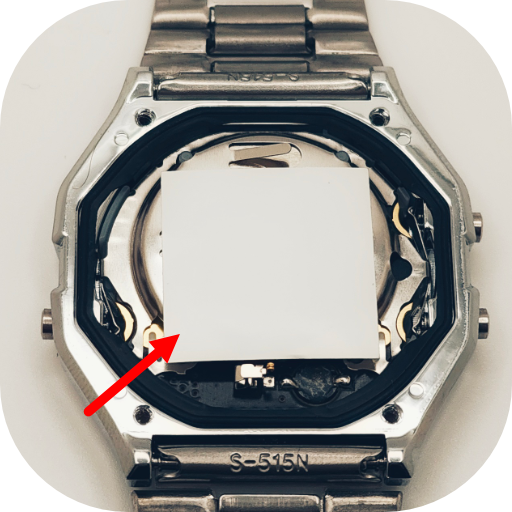
- Check that the white sticker on the metal bracket is present. If it was removed during installation, the sound will not work.
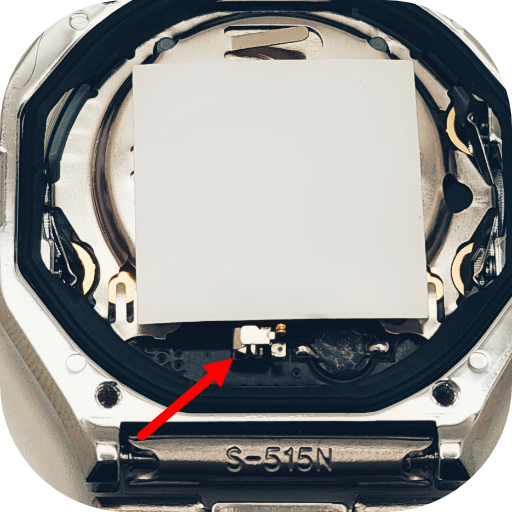
- Check that the spring on the Ollee Watch board is not broken. If it is broken, the sound will not work. See the next section.
1.5. Spring on the board broke or got damaged
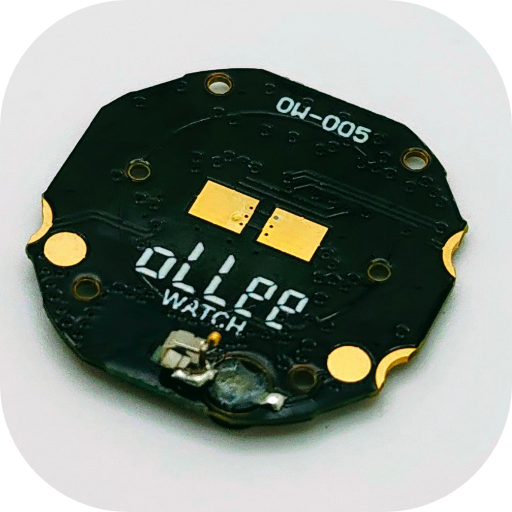
Problem: The spring on the bottom of the Ollee Watch broke or bent during installation. Without this piece, the sound will not work.
Solution: In most cases the spring can be easily fixed.
- If the spring bent: Use a pair of tweezers to align the spring back in place.
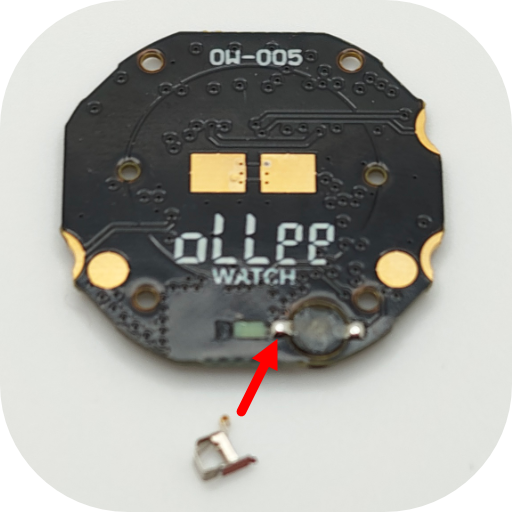
- If the spring broke off the board: If you have access to a soldering iron, the spring can be soldered to the contact next to it, as shown below.
1.6. Light button turns watch off
Problem: The installation was successful, but when the LIGHT button is pressed, the screen shuts off and the watch resets.
Solution: A small percentage of units may have this issue. It may be resolved by re-seating the Ollee Watch board into the movement. If not, please submit a support request.
1.7. Bluetooth Pairing - Failed to Save Settings
Problem: While pairing the watch, an error message saying "Failed to save settings" appears in the app.
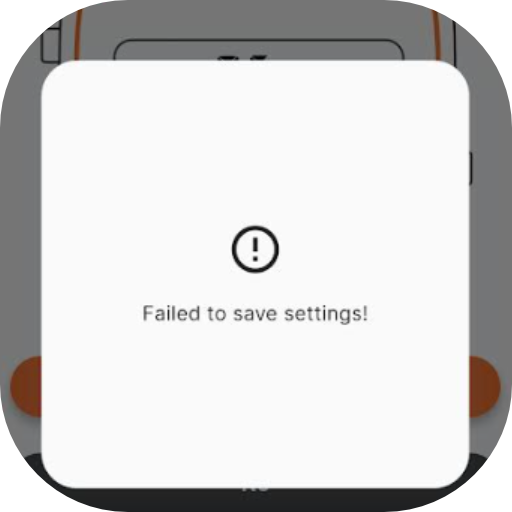
Solution: This may be a software or hardware issue. Try the following:
- Reset the watch to factory settings: Press all three buttons at the same time to bring up the Display Test screen. Hold the ALARM button (bottom right button) to show the battery voltage screen. Hold the ALARM button again to perform a factory reset. You should see the watch return back to the Clock face. Try to pair the watch again.
If that didn't work try the following:
- Take the watch off and bring it close to the phone during pairing.
- Android: Close the Ollee Watch app. Go to Settings → Apps → Ollee Watch → Storage and cache. Select "Clear storage". Open the app and try pairing again. If the issue persists, repeat the process, then uninstall and reinstall the app.
- iOS: Delete the Ollee Watch app, reinstall it, and try pairing again.
- Try pairing the Ollee Watch with a different phone to see if the issue is with the phone or the watch.
1.8. App can't access Bluetooth
Problem: The app says it cannot access Bluetooth on the phone.
Solution: If Bluetooth is enabled, this is likely a permissions issue.
- Check the app permissions in your phone settings and enable all required permissions. This can usually be found in your phone Settings → Apps → Ollee Watch → Permissions.
- Alternatively, reinstall the app so permissions are requested again.
2. Using the Ollee Watch and App
2.1. The number 7, or other characters appear differently
Problem: The number 7 appears smaller, or other characters appear differently depending on position.
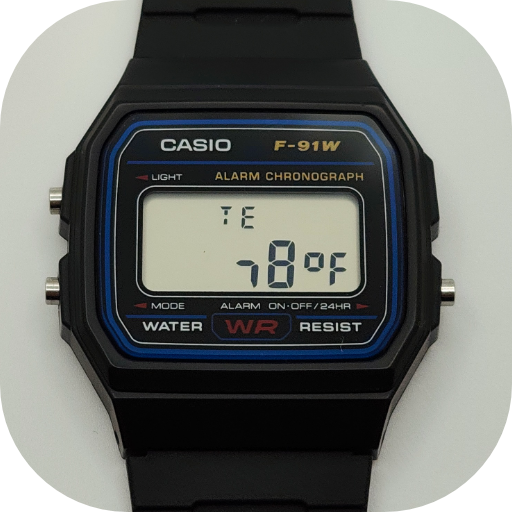
Solution: This is a limitation of the Casio display. Some digits cannot display all segments. The original Casio design limited certain segments to reduce cost, so only about half the positions support full character rendering.
2.2. Watch sync resets the settings
Problem: Settings are changed in the app, but after syncing, they reset.
Solution: After changing a setting, you must press "Send to Watch" to apply it. This includes changes in the Faces tab.
2.3. Buttons don't respond
Problem: The watch and buttons were previously working, but the buttons stopped responding.
Solution:
- Press all three buttons at the same time to enter the Display Test screen.
- Hold the MODE button (bottom left) to perform a soft reset.
This will not affect any data or settings.
2.4. Temperature is off, but enabled in the app
Problem: The Temperature face says "off", but Temperature is enabled in settings.
Solution: The motion sensor must be enabled for temperature to function. To enable the motion sensor, go in the app Settings → Device → Motion. This limitation will be fixed in app version 1.0.5 and above.
2.5. Sound is distorted
Problem: Alarm sounds are distorted or "twangy".
Solution: This indicates a low battery.
- Check battery voltage in the app Settings → Version Info.
- Below ~2.6V, some tones may distort.
- Replace the battery if needed.
2.6. LED colour is not consistent
Problem: The LED colour appears inconsistent.
Solution: This is also typically caused by low battery voltage. Replacing the battery should resolve the issue.
- Check battery voltage in Settings → Version Info.
- Below ~2.7V the LED colours may become inconsistent. Under 2.6V the Blue LED may not turn on at all.
2.7. Screen turns off, but auto-sleep is off
Problem: The screen turns off even though auto-sleep is disabled.
Solution: This is due to motion-based power saving. If no movement is detected for several minutes, the screen turns off. Any movement will wake it again.
- You can disable the motion sensor in the app by going to Settings → Device → Motion Sensor
2.8. Motion sleep doesn't work
Problem: The motion sensor is on, but the screen never turns off after several minutes of inactivity.
Solution: This is a rare bug.
- Disable and re-enable the motion sensor in the app (Settings → Device → Motion), and press "Send to Watch"
- Perform a soft reset by pressing all three buttons at the same time to bring up the Display Test screen. Hold the MODE button and a soft reset will be performed and the watch will go back to the Clock face. Note none of your settings or data will be affected by the soft reset.
2.9. Stopwatch or other faces "time out" after 3 minutes
Problem: While on the Stopwatch face (or other faces), the watch returns to the Clock face after inactivity.
Solution: This is intentional. After ~3 minutes of inactivity, it returns to the Clock face. This will be customizable in app version 1.0.5 and above.
2.10. Step count out of sync
Problem: The step count on the watch and the Ollee Watch app are not in sync.
Solution: This can occur in a few cases:
- After pairing, stored data is cleared for privacy reasons, but the step display may temporarily differ. Full sync occurs after one day.
- Step data is logged every hour. The watch display may be ahead of the app until the next sync.
2.11. Clock drift and offset
Problem: The time on the Ollee Watch drifts slightly or shows a small offset after syncing.
Solution: Clock drift (~60 seconds per month) is normal, but may vary quite a bit from unit to unit as no calibration is done during manufacturing time. App version 1.0.5 introduces automatic calibration during sync.
2.12. NFC tag won't read or damaged
Problem: The NFC tag does not work or was damaged.
Solution:
- NFC range is limited, make sure to remove your phone case and find the "sweet spot" if the NFC is not performing well
- Some phones may not read it reliably
Alternative install method:
- The alternative installation method improves the range, but is trickier to do, see the following link: YouTube video
Replacement:
- 10 × 20 mm NTAG213 chip (see here)
2.13. Heart Rate error
Problem: The Heart Rate face displays "err" when attempting to perform a measurement.
Solution:
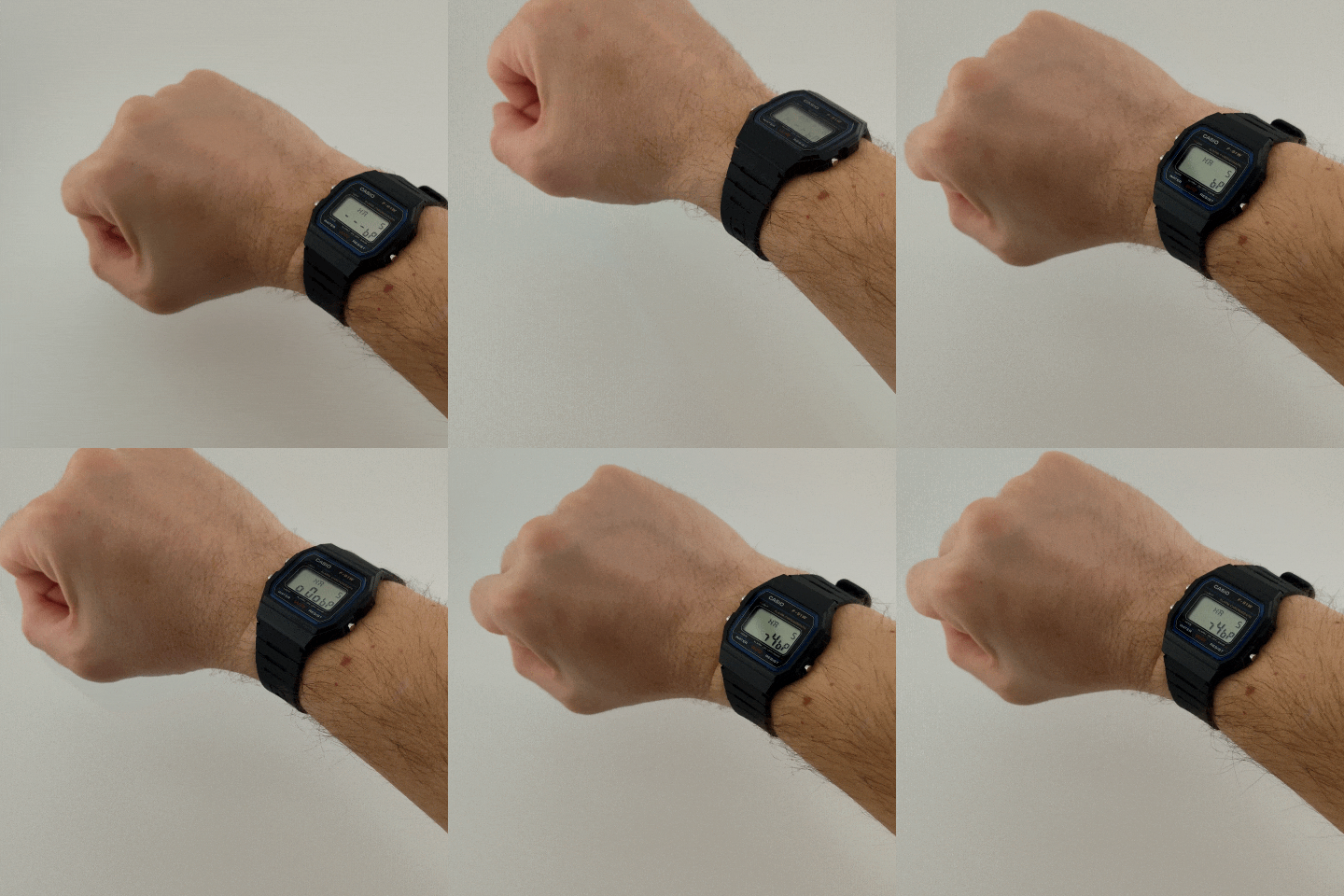
- The heart rate (pulsometer) measurement can be triggered in two ways: using the tilt gesture or by holding a button.
- With the tilt gesture enabled, tilting the watch will start the measurement, and a second tilt will stop it.
- Alternatively, you can press and hold the ALARM button for the duration of the measurement.
- You can disable the tilt gesture feature in the app by going to Settings → Device → Heart Rate Tilt.
2.14. Using the app with multiple Ollee Watches
Problem: How do you pair multiple Ollee Watches with the app?
Solution: Currently, the Ollee Watch app only supports pairing one watch at a time. If you want to use multiple watches, you can switch between them by going to Settings → Pair Ollee Watch.
It is recommended to sync the current watch before pairing a new one to ensure no data is lost, as pairing clears activity data stored on the watch. Note that all watch settings are preserved between pairings.
Support for multiple paired watches will be added in a future version of the app.
2.15. Health Connect Error
Problem: During a sync with the watch, you get the following Health connect error:
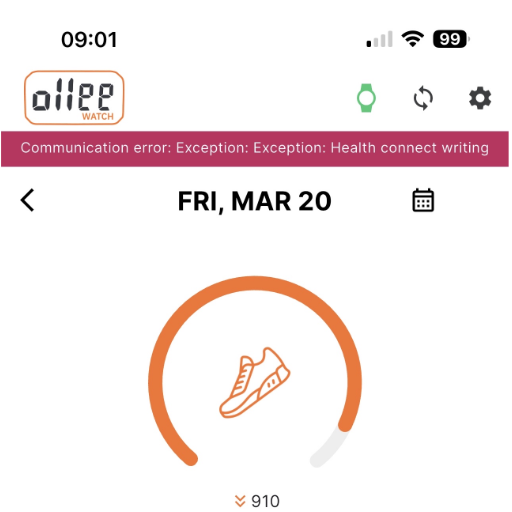
Solution: Disable and re-enable the Health Connect / Apple Health service by going in the app Settings → Activity and Health → Health Connect / Apple Health.
2.16. Account login using website credentials
Problem: Login to the Ollee Watch app doesn't accept website credentials.
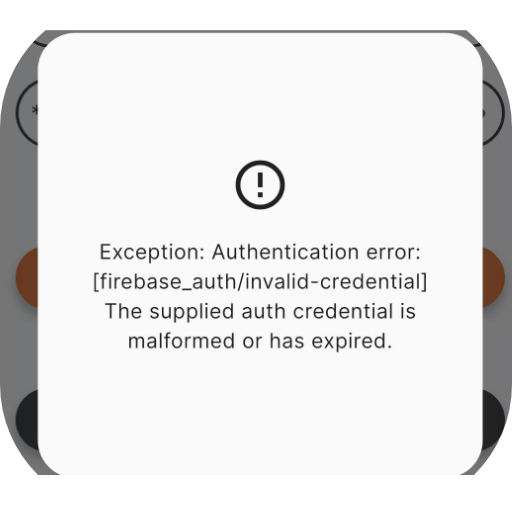
Solution: The Ollee Watch website and Ollee Watch app use separate accounts. The website account is used for order tracking only. To sign into to the Ollee Watch app, you must create an account through the app.
2.17. Firmware update stuck on boot screen
Problem: Firmware update failed and is stuck on "boot" screen, or the battery died during the firmware update.
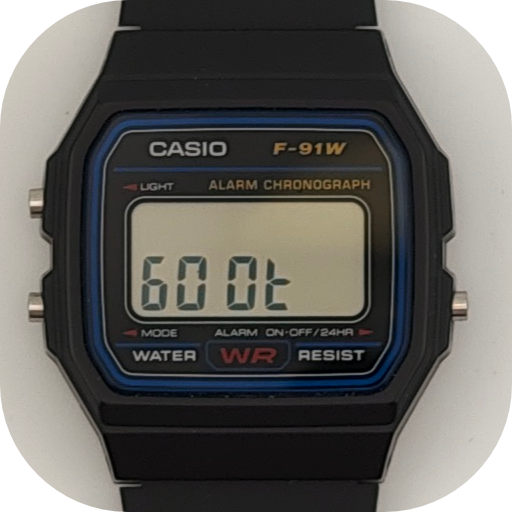
Solution: The firmware update process can always be re-tried in the app. There is no way for the watch to get "bricked".
- Remove the watch from your wrist and rest it right next to your phone.
- Go to the app Settings → Version Info and press the Firmware update button.
- The app will connect to the watch and update the firmware.
- Go back to You tab in the app and perform a sync once the firmware update is complete.
- If the watch battery died during the firmware update, you can simply replace the battery and follow the steps above.
For a detailed guide on the firmware update process, you can view the YouTube video.
2.18. Settings get reset when replacing battery
Problem: When the battery is replaced, all the watch settings return to the factory default.
Solution: This is not a bug. The watch settings are reset when the battery is replaced, or when power is lost. This is to ensure the watch can always be brought to a reliable state. A feature may be added in the future to allow settings to be restored from the app.